Posts

Showing posts with the label How Tos

How To Backup Your Photos And Videos To Google Photos On Android Phone/Tablet

Image
Google Photos is a great online backup service where you can store your photos and videos. The best thing about this service is that you get to enjoy free unlimited storage as long as you allow Google Photos to keep them in High quality. That means Google will set your photos size to 16 megapixels and videos at 1080p. Don't worry, you can still save your photos and videos at Original quality — the quality at which they were taken.  After you set up your account, you will be able to have your pictures and videos sent to the cloud, and then access them from any phone, tablet, or PC, as well as on the web. If you don't know how to backup your photos and videos to Google photos, then read the step-by-step guide below to get started. How to Backup your Photos and Videos to Google Photos  Open the Google Photos app. Tap on the three horizontal lines at the top left of the screen. Tap Settings . Select Backup & sync . If the Back up & sync is turned off, switch it on.  M...

How To Backup Your Photos And Videos To Google Photos On Android Phone/Tablet

Image
Google Photos is a great online backup service where you can store your photos and videos. The best thing about this service is that you get to enjoy free unlimited storage as long as you allow Google Photos to keep them in High quality. That means Google will set your photos size to 16 megapixels and videos at 1080p. Don't worry, you can still save your photos and videos at Original quality — the quality at which they were taken.  After you set up your account, you will be able to have your pictures and videos sent to the cloud, and then access them from any phone, tablet, or PC, as well as on the web. If you don't know how to backup your photos and videos to Google photos, then read the step-by-step guide below to get started. How to Backup your Photos and Videos to Google Photos  Open the Google Photos app. Tap on the three horizontal lines at the top left of the screen. Tap Settings . Select Backup & sync . If the Back up & sync is turned off, switch it on.  M...

3 Simple Ways To Back Up Your Android Contacts

Image
Are you looking for a way to back up Android contacts? We know how important it is to preserve the contacts numbers of friends and family in order to keep in touch with them. But there is a chance we could lose those contacts if we don't have them stored away somewhere safe.  In this post, you will learn 3 simple ways you can backup your contacts on your Android device. So let's get started.  How to backup your Android contacts  Method 1: Sync contacts to your Google account  By default, contacts, Android devices automatically backup call history, app settings, text messages, and more to Google drive. But you can also have this done manually.  Since Google owns the Android, it comes as no surprise that its services are very well integrated with devices powered by Android and one of the services it provides is the ability to save contacts to Google’s servers. With just your Google account, you can have your contacts saved in the cloud, and you can retrieved them if your phone g...

How To Sync And Backup Contacts, Text Messages, Call History, Settings And Other Data On Your Android Phone/Tablet

Image
If you have a computer, you surely know how important backing up files is. For a mobile phone user, this should be a must if you do not want lose precious data when your device is gets missing, spoilt, or worse, stolen. Your backed up data can come in handy when you are switching to a new phone.  You can backup all your data online called a cloud storage. One popular online cloud storage is Google Drive. A good thing about Google Drive is that it is free and you don't need to worry about storage space since it won't count it in your account.  By default, the Google backup service is turned on after you first set up your phone. This automatically backup your contacts, call logs, text messages, calendars, app data, and device settings to Drive, so that you'll be able to restore them to a new phone or to the same phone if you perform a factory reset. You only need to log onto your Google account during initial setup configuration and your data will be synced with your Google a...

How To Move WhatsApp Chats To Telegram On Your Android Phone/Tablet

Image
Since WhatsApp came up with their privacy rules, many users seeking more freedom and privacy migrated to other rival messaging services and one of such services is Telegram.  Telegram provides end-to-end encrypted voice and video calls and optional end-to-end encrypted "secret" chats. You can send text and voice messages, make voice and video calls, and share an unlimited number of images, documents (2 GB per file), user locations, animated stickers, contacts, and audio files. Telegram is one of the most popular apps today with over 500 million active users and a billion downloads. If you are among those who migrated from WhatsApp to Telegram but don't know how to take your chats with you, then the simple steps below will be able to help you. Mind you, you won't be able to take all your chats at the same time. You will have to do that one at a time.  Enter the WhatsApp. Open a chat.  Hit the 3-dot menu at the top right.  Tap More . Tap Export Chat . When the Share m...

How To Manage Your Internet Data Usage On Your Android Device

Image
Just a few years ago, it was rare for mobile phones to consume multiple gigabyte of data. But today, music and video streaming, as well as, the download and update of data-hungry apps that may exceed 100MB in size can wind up GB in a matter of days.  The increasing use of sophisticated phones, the popularity of such video streaming apps like Netflix and YouTube, and the addiction to social network such as Facebook, Twitter, and Instagram, has led to an ever soaring increase in data usage. As a result, consumers see their data explode astronomically.  Understandably, we can't do away with the Internet since our phones will be useless without it. Therefore, we need to know how to manage our data to prevent it from being throttled. The tips below may be able to help do just that.  How to Manage Your Internet Data Usage on Your Android Device  Set up a data limit. Android provides an option for you to monitor your data usage and set a limit and alerts to warn you when yo...

How To Connect PS4 DualShock 4 Controller To Your Android Device To Play Games

Image
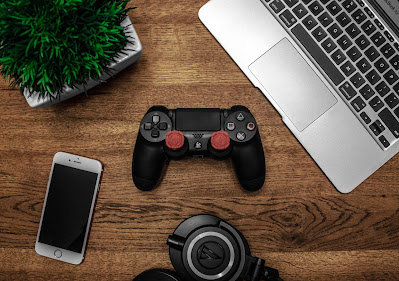
For years, one of the most biggest drawback of mobile games, compared to video-games and handheld consoles, is that you have to rely on touchscreen control to play most of your games. Fortunately, it's now possible to use controllers on mobile devices as you would on a video game console or a Nintendo Switch.  Many controllers are now being designed work with mobile phones, and most Android devices, especially Android 10 and above, have controller input support. The best controller among the pack right now is the DualShock gamepad developed by Sony for their PlayStation console. To control your favourite game, you will need the DualShock 4 controller to connect to your device using Bluetooth. Of course, not all games have built-in controller-support. But with those that are compatible, you can enjoy your favourite games with DualShock 4.  In this post, you will be shown how you can use your PS4 controller on your Android device. How To Connect PS4 Controller To Android Devices...

How To Download Fortnite On Android

Image
Earlier this month, Google as well as Apple took down Fortnite from their online Store after its publisher Epic Games tried to get around the 30% fee they both charge app developers for purchases on their platforms. In response, Epic filed lawsuits against the tech giants to get them to rescind their decision.  Though Google Android users may no longer be able to download Fortnite via the Internet Play Store, they can still legally install and play the game on their phone or tablet, but that would require some little work on their part. The same, however, cannot be said about Apple iOS devices which restrict access into its system. So we'll be concentrating on those with Android devices.  HOW TO DOWNLOAD AND INSTALL FORTNITE ON YOUR ANDROID   For those with Android, there are two simple ways they can download and install Fortnite on their devices: 1. From Epic Games official website.  2. From Galaxy Store using Samsung devices.  Before you begin, first make sure...

How To Convert Video To Mp3 With Xender

Image
If you have a mobile phone, then you've probably come across the Xender app. Almost everyone with an Android phone is sure to have heard or make use of this popular app.  For those who are still ignorant, Xender is a file sharing application that enables users to send and receive files like videos, documents, apps, photos from friends and family. You can transfer files between two phones via WiFi connection.  Apart from being a file-sharing app, Xender can also be used to convert video to mp3 audio. This is one of the features that was added a little while ago. You can use this feature to convert videos to audio within the Xender app without the need of a video converting app.  So how can one convert videos to audio? Below is a simple step by step guide on how to do it.  How to convert video to mp3 1. First, make sure your Xender has the converting feature in it. If not, update the app to the latest version by downloading it from the play store.  2. Launch the X...

All You Need To Know About Glo's "My Own Don Beta" Promo, And How To Participate

Last Thursday in Lagos, the self-styled "grand masters of data" Glo Network launched a life-transforming consumer promotion tagged “Recharge and Win Big”, otherwise called “My Own Don Beta". The offer is specially designed to reward all new and existing (prepaid and Hybrid postpaid) Glo customers with exciting and empowerment prizes for the year end. Customers will be able win great prizes every single day of the week. Nigerians from all walks of life, including former football captain, Austin Jay Jay Okocha, have been congratulating Globacom for the promo which they feel will help alleviate the poverty in the country. According to Globacom Retail and Consumer Sales Chief, David Maji, some of the items to be won in the promo included Tricycles, popularly called Keke, Industrial Sewing Machines, Grinding Mills, and generators. If you want to participate and enjoy this offer, go through post below to see what you need to do. How to participate in ...

If Your App Keeps Crashing When Trying To Load Web Pages Try This

Image
Does your apps tend to crash whenever you try to load a web page? If so, you’re not alone for many users have been reporting these issues for some time now. Investigation into what causes it has revealed that Android’s WebView feature is the culprit. Viewing pages in WebView is not the same as when using  Chrome app or other mobile web browsers, as it lets you navigate websites without having to load an external app. But the recent spate of freezes and crashes reported by users trying to open web pages with WebView has become a cause of concern. Happily, the problem can easily be solved by just temporarily disabling WebView. However, this will only work on devices running Android 7.0 or higher. How to disable WebView • Open the Google Play Store app. • Tap the three stacked lines icon. • Tap My apps & games . • Scroll down and tap Android System WebView from the apps list. • In the app’s settings page, tap Uninstall to disable it. • After disabling...

Gmail's Dark Mode is Now Being Rolled Out, How to Get Yours on Android 10

Image
Earlier this year, Google started adding dark mode to the Android Pie update, though not every devices received it. Now, the much-hyped, much-expected Android 10 has been released, and it comes with an incredible feature that allows users to automatically apply a systemwide dark theme across Google's OS when they turn it on. You can also easily turn the dark mode on in individual Google apps, from Calendar to YouTube. However, not all Google apps make use of the automatic default system dark theme feature, including Chrome. Gmail was among the apps not making use of the feature until just recently when Google started rolling out a dark-mode setting for Gmail on Android 10. If you want to know how to turn on the dark mode in Gmail on Android 10, then follow the steps below. How to turn on the Gmail dark mode setting in Android 10 1.  Open the Gmail app on your phone and tap the hamburger menu in the top left. 2.  Scroll to the bottom of the lis...

How to Get Airtel's 200MB for N100, 1GB for N200 and 4GB for N1000

Image
Some time ago, MTN introduced an awoof data bundles that can gotten for cheap. Now, Airtel is following suit with a similar offer. Like MTN the data plans is valid from 3 days to 1 month, but unlike MTN you get 200MB instead of 250MB for N100. Be also aware that the plan is SIM selective for some people have said they are not able to access it. If you are able to access the data bundles, you will be required to choose one of the plans below. 3-Days Plan 200MB for N100 - Valid for 3 Days Weekly Plan 1GB for N200 - Valid for 7 Days Monthly Plan 4GB for N1000 - Valid for 30 Days How to Activate To access the plans, dial *141*241# and a list of the plans will be sent to you. Just make your pick on the one you want. Don't fall to share this information with your pals. Hlappy browsing.

How to Get 250MB for N100, 1GB for N200 and 4GB for N1000 from MTN

Image
In case you haven't heard, MTN has been offering a side data plan for months and it's quite huge. However, you will need to activate the plan by sending a code. The data last from 3 days to 1 month. Below are the listed plans you're required to choose from. 3-Da ys Plan 250MB for N100 - Valid for 3 Days Weekly Plan 1GB for N200 - Valid for 7 Days Monthly Plan 4GB for N1000 - Valid for 30 Days How to Activate To access the plan, dial *131*65# and a list of the plan will be sent to you to choose from. Hope you like the post. Don't forget to share. Happy browsing.

How to Manually Force an Update of Android Auto on Your Smartphone

Google has been rolling out a new version of Android Auto since late last month. Android Auto was designed to connect an Android mobile device to a car. The new Android Auto app comes with a new look and feel when plugged it into a car. Users are supposed to be notified whenever an update arrives, but some Android users are yet to receive a notification for the update. So in this post, you will learn a trick on how to manually force an update of Android Auto app on your mobile if don't want to keep waiting for Google to automatically update yours. How to Manually Force an Update of Android Auto  First check to see if you’re eligible for an update by opening the Android Auto app on your phone. Tap the hamburger icon in the upper-left corner. Tap on Settings. At the top of the screen, look for an item which should be an option to “Try the new Android Auto.” Enable it, and you should have the brand-new version of Android Auto the next time you plug your phone into you...

How to Get Airtel's 100% Data Bonus And Enjoy 1.5GB for N500, 3GB for N1000 And 7GB for N2000

Did you just buy a new Smartphones or are in the process of buying one? If so then know that Airtel has an interesting package that can enable a subscriber enjoy 100% Data bonus for up to 6 months. This means you can get 1.5GB (instead of 750MB) for N500, 3GB (instead of 1.5GB) for N1000 or 7GB (instead of 3GB). Read also: Airtel Data Plans for August 2019 With Subscriptions and Codes  How to Activate Airtel 100% Data bonus Get a new Smartphone, insert your Airtel SIM and then text GET to 141 . You will receive a congrats message, informing you that you can now enjoy the Airtel 100% Data bonus for the next 6 months anytime you purchase a data bundle. To check your data balance by dial *223# or *140#

How to Track and Find Your Missing Android Phone

Although, we tend to find it hard to part with our phones, even for a few minutes, we may still fail into the situation where our mobile gets misplaced, or worse, stolen. When you experience such a situation, what do you do? If your phone is presently missing, it is imperative that you should immediately find it before someone else does because of the sensitive information stored within it. Thankfully, Google has made it easier for us to locate our lost phones which we can use to track it down and perform various options to protect our stored data. Below is a number methods you can try to track and find your missing Android phone. Bear in mind that this doesn't always work. Moreover, the missing phone will have to be on signal, location or data for it to work, but it is still a useful way of finding a lost phone. Method 1 - Finding your Android phone with another Android phone 1. Get another Android device by either buying another one or borrowing someone else ...

How to Activate your Mobile Phone Internet Connection Settings for MTN, Glo, Airtel and 9Mobile

Image
One of things that makes a mobile phone such a great piece of technology is that it comes with an internet which you can browse with anywhere and anytime. However, before you can access the internet, you will need to activate your phone with 4G, 3G, 3.5G or GPRS internet settings. No matter what mobile network you use, it is important that your mobile device have an internet-enabled settings or APN (access point names) settings properly configured. If the settings is not correct, you won't be able to access the web. In this article, you will find out how you can properly activate your mobile phone to enable internet access. How to activate your mobile phone internet connection settings There are two main ways you can activate your phone for internet access, the automatic method and the manual method. To automatically obtain the internet settings for browsing, you will need to send an SMS command to the mobile network. When the network receives your message, ...

How to Easily Retrieve Your Lost or Damaged Airtel SIM

Have you misplaced or damaged your Airtel sim card? Then don't panic because it is now possible for you to get it back even from the comfort of your home whether it is stolen, damaged or lost. Airtel Network have made it very easy to retrieve a lost, damaged or stolen SIM and there are two simple methods you can use to easily retrieve your airtel line. You can retrieve your SIM via: i. SMS ii. Airtel Self-care portal How to retrieve your Airtel SIM via SMS Requirements Before you can start the retrieval process, you need to first have the following. 1. A new welcome back Airtel SIM. 2. The sim pack of the stolen or damaged SIM. 3. The SIM pack of the new welcome SIM. 4. The serial number of the lost or damaged Airtel SIM found in the SIM pack. 5. The serial number of the new Airtel SIM which can be found on the SIM pack. 6. The PUK number of the lost or damaged SIM. 7. The PUK number of the welcome back SIM. 8. The phone number...

How to Easily Fix Your Facebook When It Stops working

Image
Add caption With over 1 billion users, Facebook as we know it today is the number one social networking service. Despite all the controversy surrounding it, especially on the matter of privacy, Facebook users have continue growing. You probably use Facebook app to connect with your friends, family, coworkers, and to even promote your business. Clearly Facebook is one service that is hard to live without. But what if you find that your Facebook has stopped working? For many, that can set up a panic attack. Fortunately, there are some easy steps you can take to fix this problem and get it back running. Continue reading to find out. How to fix Facebook when it stops working Clear the app cache The first thing you should consider when an app stops functioning properly is the cache. If the app cache is full, it will start acting sluggish. So clear the Facebook cache. To do this, go to Settings, tap Apps , select Facebook and click on Clear Cache . Alternative...

How to Easily Get Free 500MB Data Monthly for 6 Months When You Buy MTN Smart Feature Phone

Not long ago MTN Nigeria released a 3G enabled featured phone which they call "Smart". When you purchase this phone you automatically get 500MB for up to 6 month. The cost of MTN Smart is also very reasonable. With just N8,000 you can have your own smartphone and enjoy the offer that comes with it. The New MTN Smart Feature Phone has a 2.4 inch screen and uses KaiOS as its operating system. The phone comes with a 2000mAh battery, two cameras and a double SIM support. It is powered by SC7731EF processor, along with a 256MB RAM and 512MB ROM. The phone also contains 3G network, Bluetooth and GPS connection, and enables Wi-Fi. And it's packed with apps like WhatsApp, Facebook, MyMTNApp, Twitter Google Assistant, YouTube, FM radio, Google Maps among  others. How to get MTN Smart Feature Phone and enjoy 500MB data To own your own MTN Smart Feature Phone just stroll into any MTN office nearest to you and purchase the MTN handset for N8,000. Next, insert your MTN S...